Hey everyone, Firewalls for Cisco

If you’ve ever stared at your screen, refreshing a page 10 times like it’s gonna load faster, only to realize it’s not working—chances are you’ve dealt with a Cisco firewall connectivity blip. As someone who’s been knee-deep in Cisco firewalls for years (we’re a supplier, for what it’s worth), I’ve seen every single frustration from half-loaded cloud apps to dropped team drives mid-task. Let’s cut the jargon and get real about troubleshooting this stuff—no corporate fluff, just what actually works when your firewall’s being a diva.
First off, let’s get one thing straight: Cisco firewalls aren’t out to ruin your day. They’re just doing their job—keeping bad guys out. The problem is, sometimes their “job” kicks in too hard, blocking stuff it shouldn’t. I’ve had clients call at 2 a.m. panicking because their VPNs died right as their team was wrapping up a big launch, and 9 times out of 10? It’s not a hack. It’s a misrule, a stale config, or something tiny that got messed up during a routine update. So let’s break this down step by step, like we’re walking through it together. No skipping steps—trust me, I’ve skipped a step or two and paid for it.
Start with the basics before diving into the Cisco CLI or those fancy GUI dashboards. I know, I know—“the basics” sounds like your IT teacher nagging you, but hear me out. 90% of the time, connectivity issues aren’t some deep, scary bug. First, check if the connection is being blocked at all. Grab a tool like ping or traceroute (or our go-to, the simple test tool we include with every Cisco firewall setup—works like a charm) and see if you can reach the external IP or server. If ping fails, maybe it’s a WAN issue, not the firewall. But if ping works for some devices on your network and not others? That’s when the firewall’s probably the culprit. Also, double-check cables and Wi-Fi (yes, even with firewalls wired still matter—my team once spent 2 hours troubleshooting only to find a loose Ethernet port in the server closet. Embarrassing, but true).
Next up: check the firewall’s rule base. Cisco firewalls run on access control lists (ACLs), right? And let’s be real—when you’re adding rules for new apps, cloud tools, or team devices, you might accidentally block something important. I’ve seen clients have 50+ rules stacked up, and the newest one overrides an old, critical one, or a typo in an IP address kills a connection. Here’s how to actually check this: log into your Cisco firewall (if you’re not sure how, we’ve got quick start guides for every model we supply—no need to call a consultant for a basic check). Use the command show access-list (or whatever the GUI calls “active rules”) and look for two things: is the rule allowing the traffic you’re testing? For example, if you’re trying to access a cloud app on port 443, is there a rule that allows that source IP, destination IP, and port? Also, check for implicit deny rules—Cisco’s got a default rule at the end of every ACL that blocks anything not explicitly allowed. If your traffic’s not matching an “allow” rule, it’s hitting that implicit deny, and that’s why it’s blocked. I once had a client block their entire office from accessing Microsoft Teams because a new intern typed “deny any any” by mistake in the test rule. Oops.
Wait, what about NAT? Network Address Translation is another big one for Cisco firewalls. NAT changes private IPs on your internal network to public IPs when you go out to the internet. If your NAT rules are messed up, devices might have the wrong public IP, so external servers don’t know where to send the response. For example, if your internal device has a private IP like 192.168.1.10, and the NAT rule isn’t mapping it to a public IP correctly, the external server sends data to the wrong place, and the connection drops. To check this, use the command show nat and make sure your internal IP is mapped to the right external IP and that there’s a reverse NAT (sometimes called “hairpin NAT”) if you’re trying to access an internal server from outside the network or even the same network using a public IP. We always include a pre-configured NAT cheat sheet with every Cisco firewall we supply—saves you from messing this up.
Then there’s stateful inspection. Cisco firewalls are stateful, meaning they keep track of active connections. If a connection is idle for too long, the firewall might time it out—boom, connectivity gone. That’s super common with things like remote desktop, video calls, or file transfers that take a while. The default timeout is usually around 30 minutes, but some apps need longer. The fix? Adjust the timeout value in the firewall settings for the specific protocol or port. For example, if your video conferencing keeps dropping, you can increase the TCP timeout for port 5004 (the common video port) to an hour or more. Pro tip: don’t just cranked all timeouts up—only adjust the ones for the specific apps that need it, because longer timeouts mean more open connections that could be exploited.
Don’t forget about security policies and application inspection. Cisco firewalls don’t just block based on IP and port—they can inspect the actual application traffic to make sure it’s legit. So if an app is using a non-standard port (like if someone set up a web server on port 8080 instead of 443), the firewall might flag it as suspicious and block it, even if you have a rule allowing that port. For example, if you’re running a self-hosted file sync tool, and the firewall’s application inspection for “unknown apps” is too strict, it might block that traffic. To fix this, you can either add the app to the firewall’s allowed application list, or adjust the application inspection policy to be less strict for that specific traffic. We train all our clients on this during onboarding—no need to be a Cisco expert to get their apps working.
Another thing: firmware and software updates. Cisco releases updates for their firewalls all the time—they fix bugs, patch security holes, and sometimes add new features that affect connectivity. But sometimes, an update can break existing rules or change default settings, leading to connectivity issues. I once had a client who updated their Cisco firewall over the weekend, and on Monday, their entire sales team couldn’t access their CRM. Turns out, the update changed the default ACL to block the CRM’s new port. The fix? Check the Cisco release notes before updating, and always test updates in a staging environment first (if you have one). If you don’t have a staging environment, we can help you schedule updates during off-hours and roll back quickly if something goes wrong—we’re all about minimizing downtime, not causing it.
What about VPN issues? That’s probably the most common firewall connectivity problem people face. If your remote workers can’t connect to the office VPN through a Cisco firewall, start with the basics: is the VPN service running on the firewall? Are the VPN client settings correct (like the right server address, authentication method, and encryption type)? Also, check if the firewall’s VPN policy is allowing the VPN protocol—Cisco uses IPsec, SSL, or both, so make sure the right protocol is enabled and not blocked by an ACL. If you’re using our Cisco VPN-compatible firewalls, we include pre-tested VPN profiles that work with all major VPN clients—saves you from troubleshooting VPN setup on your own.
Wait, let’s talk about logs. Cisco firewalls generate tons of logs, and they’re your best friend when troubleshooting. If you’re not checking the logs, you’re flying blind. The logs will tell you exactly why a connection was blocked—was it because of an ACL rule, application inspection, NAT, or a timeout? To view logs, you can use the GUI (most Cisco firewalls have a dashboard that shows real-time logs) or the command show log. I tell all my clients to check logs first when something’s not working—9 times out of 10, the log will spell out the problem in plain English, no guesswork. We also offer log monitoring tools as an add-on for our firewalls, so you can get alerts when a connection is blocked before your team even notices.
Now, what if none of this works? Don’t panic. Sometimes it’s a more complex issue, like a hardware problem with the firewall, a bug in the firmware that we haven’t seen before, or a conflict with another network device. That’s where we come in. We supply Cisco firewalls and have a team of experts who know these devices inside and out. We don’t do generic support—we work with every client one-on-one to figure out what’s wrong, no matter how weird the issue is. Whether you’re a small business with 10 employees or a large enterprise with 1,000+ users, we tailor our support to your needs, and we don’t make you jump through hoops to get help.
At the end of the day, troubleshooting Cisco firewall connectivity issues is all about being systematic. Don’t skip steps, check the basics first, use logs, and don’t be afraid to ask for help. If you’re dealing with constant connectivity issues, or you’re ready to upgrade your firewall setup to make these problems a thing of the past, we’re here to help. We work with businesses of all sizes, supply Cisco-compatible firewalls that are reliable and easy to manage, and we make sure you never have to stare at a “connection failed” message at the worst possible time.
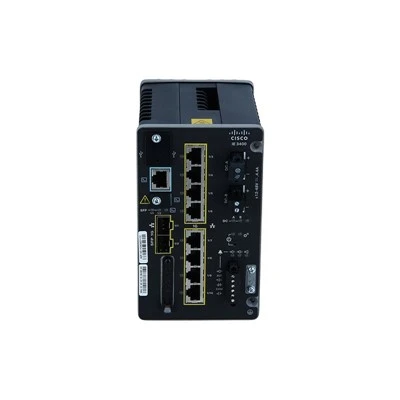
So if you’re tired of dealing with flaky firewalls that ruin your workday, hit us up to talk through your needs. We don’t do pushy sales talks—we just want to make sure you have the right firewall setup that works for your team, no headaches.
Firewalls for Aruba References:
- Cisco Systems. (2023). Cisco Firepower Management Configuration Guide.
- Cisco Systems. (2022). Troubleshooting Cisco Adaptive Security Appliance Connectivity.
- Network World. (2021). 10 Common Firewall Issues and How to Fix Them.
- Our internal technical documentation for Cisco-compatible firewall deployment and troubleshooting.
AITI Tech Limited
AITI Tech Limited is one of the most professional firewalls for cisco manufacturers and suppliers in China for over 20 years, featured by quality products and low price. Welcome to buy bulk discount firewalls for cisco in stock here from our factory. If you have any enquiry about pricelist, please feel free to email us.
Address: 6F, Haogong Building, Yannan Road, Futian District, Shenzhen, China
E-mail: kelly@hkaiti.com
WebSite: https://www.hkaiti.com/
